
Devices & security
Configure device-specific settings and protect app access with a PIN code.
Devices & security
Magic Position offers two pages of local settings: one for preferences
specific to the device (for example on the desktop version), and
another for security access to the app via a PIN code. These
settings are not synced to the cloud — they remain tied to the device
on which you configure them.
Device settings
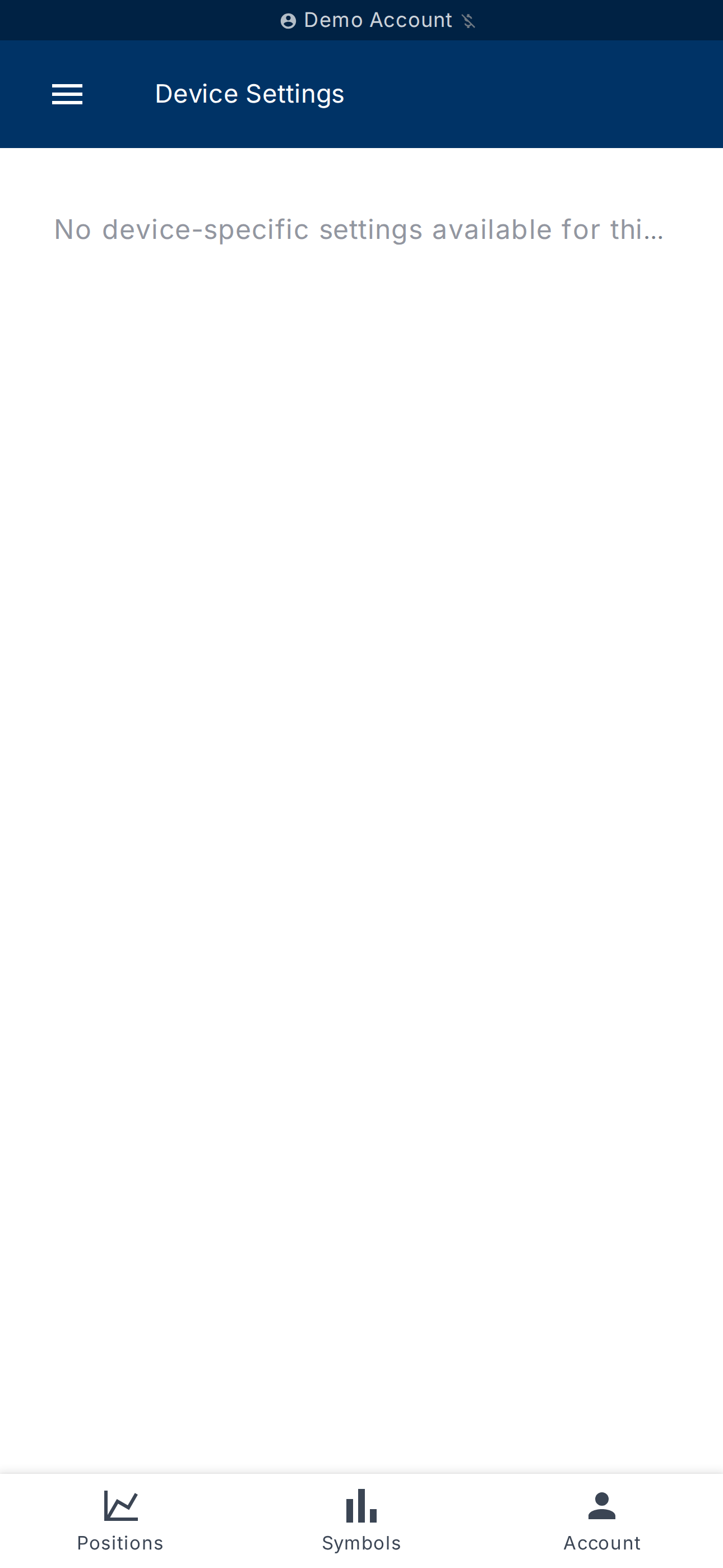
The Device Settings page lists
the options available depending on the platform in use.
On the desktop version, the Always on Top option keeps the
Magic Position window visible above other applications — handy for
monitoring your positions while working on something else.
On other platforms, the message No device-specific settings available
for this platform. is displayed.
Enabling the PIN lock
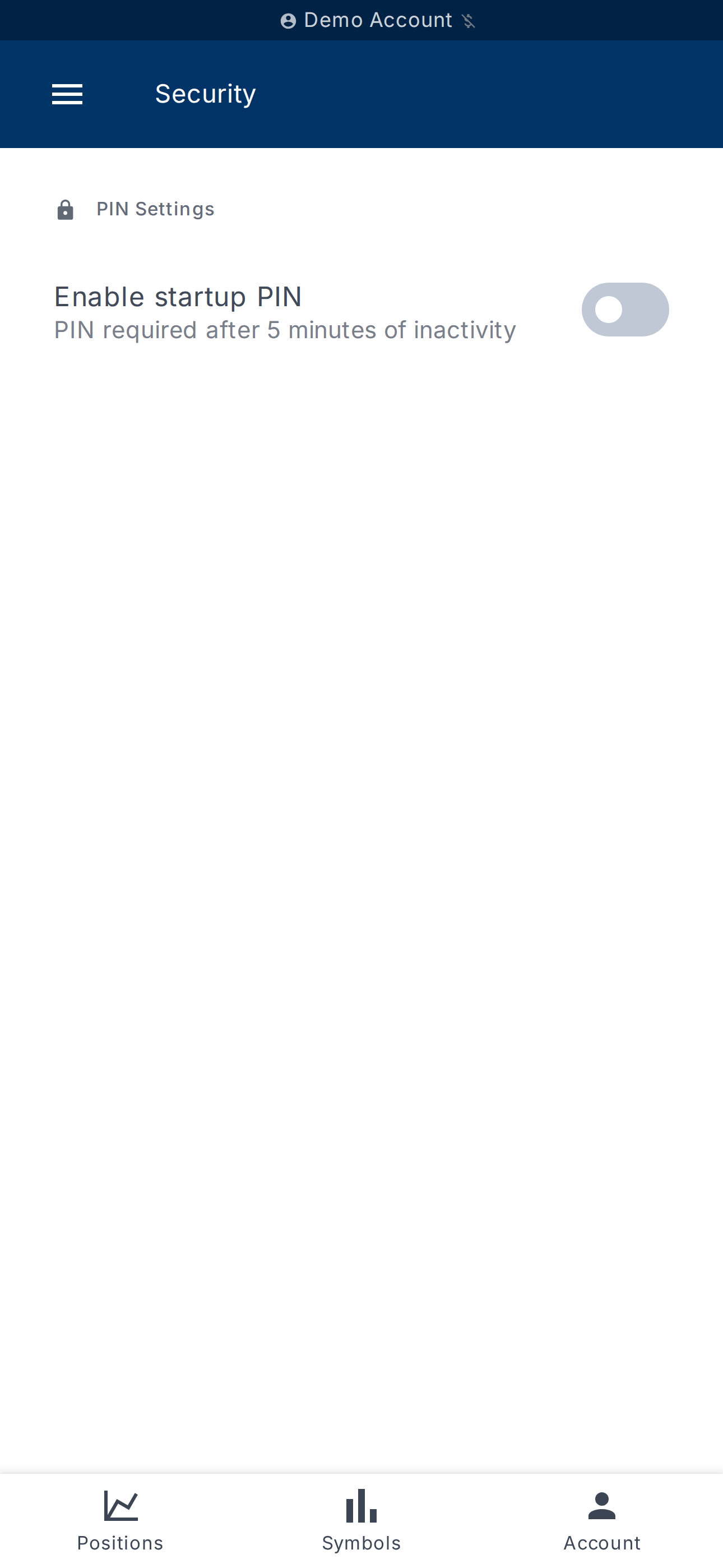
The Security page lets you
enforce a 4-digit PIN code at app startup and after a period of
inactivity.
The Enable startup PIN toggle turns protection on or off. The
description reminds you of the rule: PIN required after 5 minutes of
inactivity.
On first activation, the app asks you to Set your PIN code by
entering the desired code, then confirming it.
Changing the PIN code
Once a PIN is set, the page displays Current PIN with the
Configured badge. The Change PIN button opens the change
procedure:
- enter the Current PIN;
- enter the new PIN;
- confirm.
A PIN saved! message confirms the update.
Disabling the PIN code
Turning off the Enable startup PIN toggle requires entering the
current PIN to confirm the operation. Once validated, the PIN
disabled message is displayed and the app no longer asks for a PIN at
startup.
When is the PIN requested?
The app requests the PIN in several situations:
- At startup if protection is active;
- After 5 minutes of inactivity;
- Manual lock triggered from the interface;
- Authentication required for certain sensitive actions.
In case of an incorrect PIN, the app shows the number of
attempt(s) remaining.
What's next?
- Centralise the management of your trading account — see
Manage account.