
History and reports
Browse closed position history and configure automatic performance reports delivered by email.
History and reports
Magic Position keeps a history of your closed positions and can
automatically generate performance reports delivered by email.
This page explains how to browse your archives and enable the reports
that matter to you.
Browsing archived positions
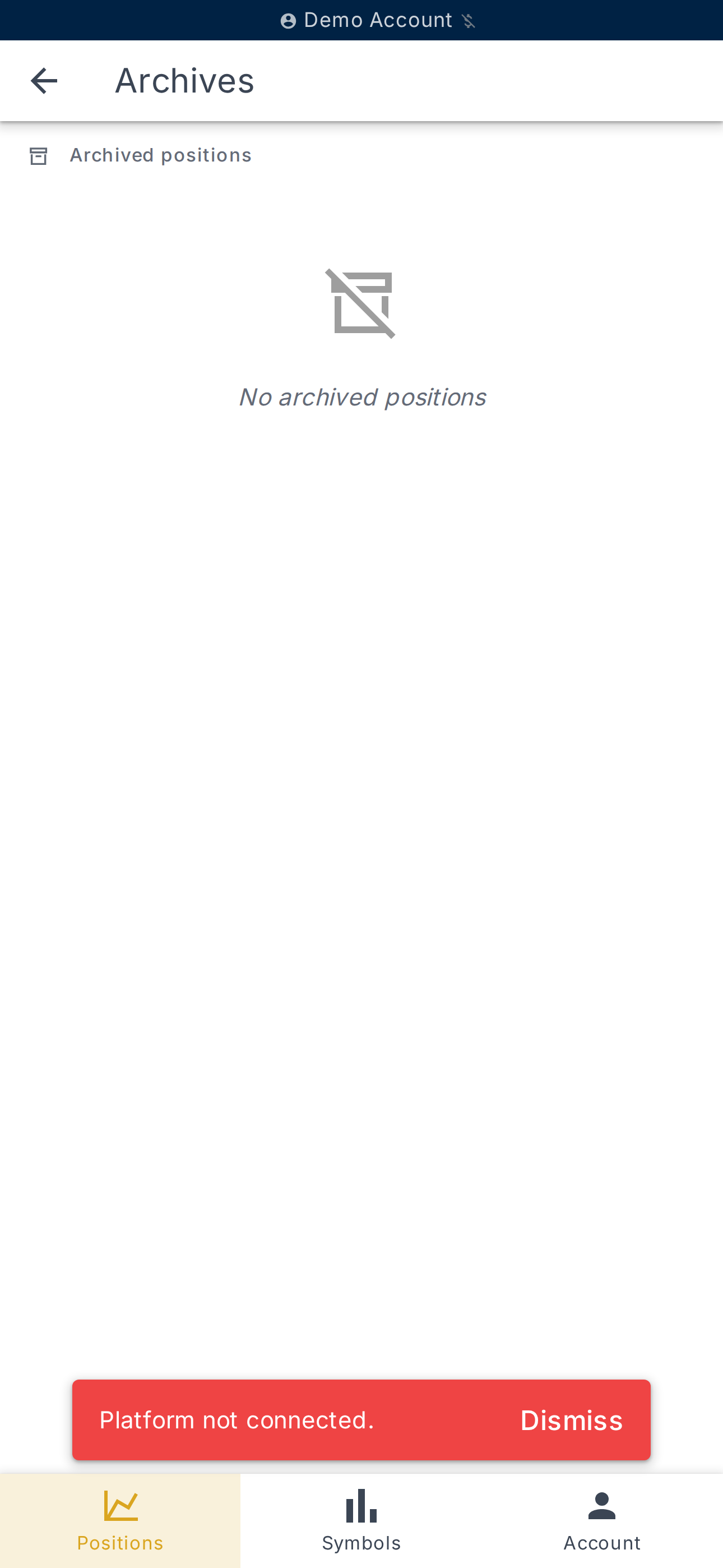
The Archives page lists all
closed positions for the selected account, in chronological order.
A pagination indicator shows the current Showing range (for example
Showing 1 - 20 of 348).
Click a position to open its detail. The detail view includes:
- the Timeline of events (opening, Stop Loss or Take Profit moves,
partial closes, final close); - the realised PnL, the Risk, the Price Levels and the
Details (account, symbol, side, dates); - the Notes you added at the time of the trade.
Reviewing a closed position
The detail screen of a closed position displays the Final Result
reported by the broker. If the broker has not reported a final P&L, a
message invites you to contact support.
You can also share the position (text, chart, or animation) from
this screen, to discuss a trade with your community.
Enabling automatic reports
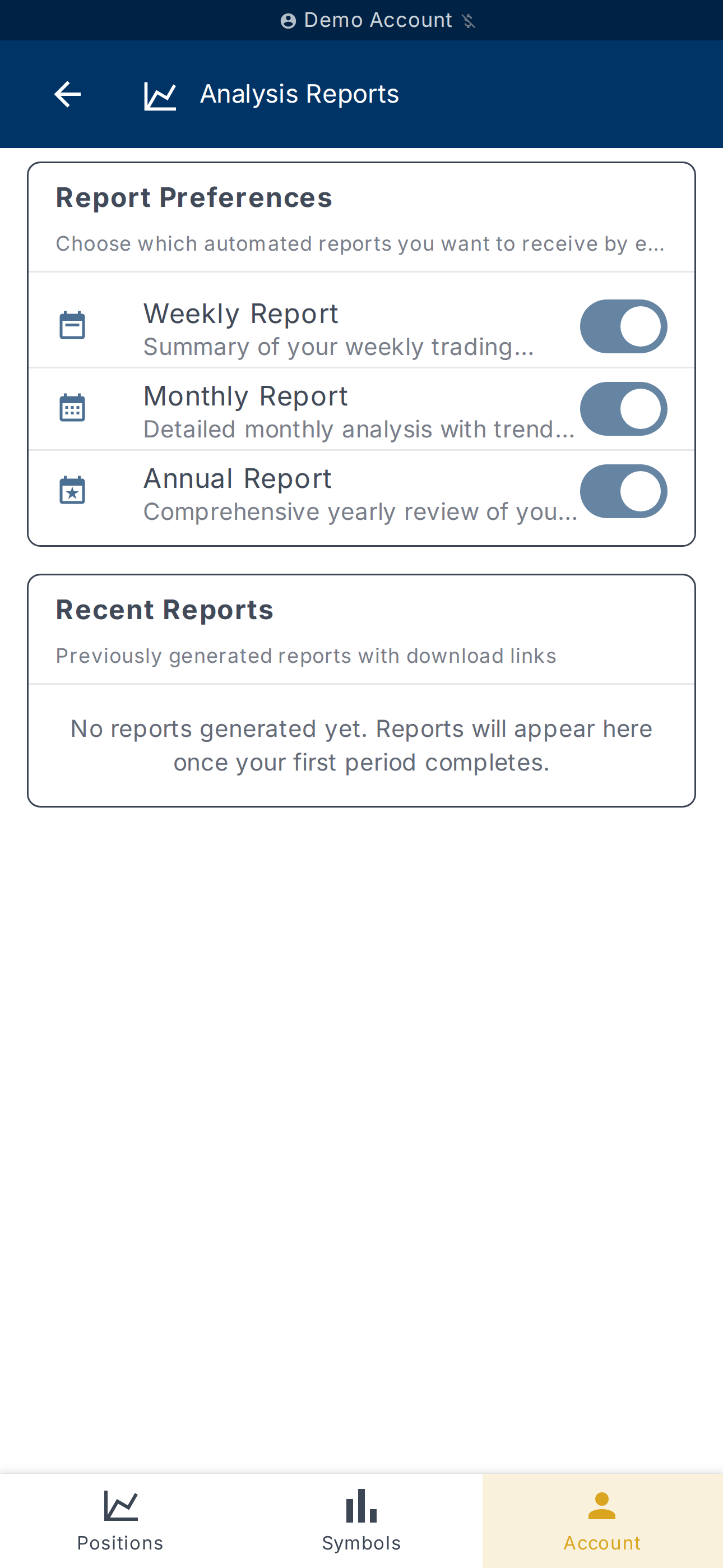
The Report Preferences page
configures the performance reports sent by email:
- Weekly Report — summary sent every Monday;
- Monthly Report — detailed monthly analysis with trends;
- Annual Report — comprehensive yearly review of your trading activity.
Each report can be enabled independently. Reports are scoped to the
selected account — you can, for example, enable the monthly report only
on your live account.
Downloading a generated report
The Recent Reports section lists previously generated reports with
download links. As long as no period has completed yet, the message
No reports generated yet. Reports will appear here once your first period completes.
is shown — reports will appear as soon as the first period ends.
What's next?
- Configure email position notifications — see
Notifications. - Define an exit strategy to make your closes more reliable — see
Configure stop-loss and take-profit.