
Notifications
Configure notification channels (email, Telegram, Discord) and adjust balance and PnL display preferences per account.
Notifications
Magic Position keeps you informed of changes to your positions by email,
and lets you customise how amounts are displayed for each account. You can
also receive alerts on Telegram or Discord, and link your Discord account
to unlock subscriber perks. This guide summarises where to adjust each
preference.
Account display preferences
The Account Notifications
page controls how the Balance and PnL are displayed for the
selected account.
Three modes to choose from:
- Value — the raw amount returned by the broker;
- Percentage % — the change expressed as a percentage of capital;
- Hidden — the value is not shown (useful for screen sharing).
These preferences are specific to each account — a demo account
can display amounts as values while a live account keeps them hidden.
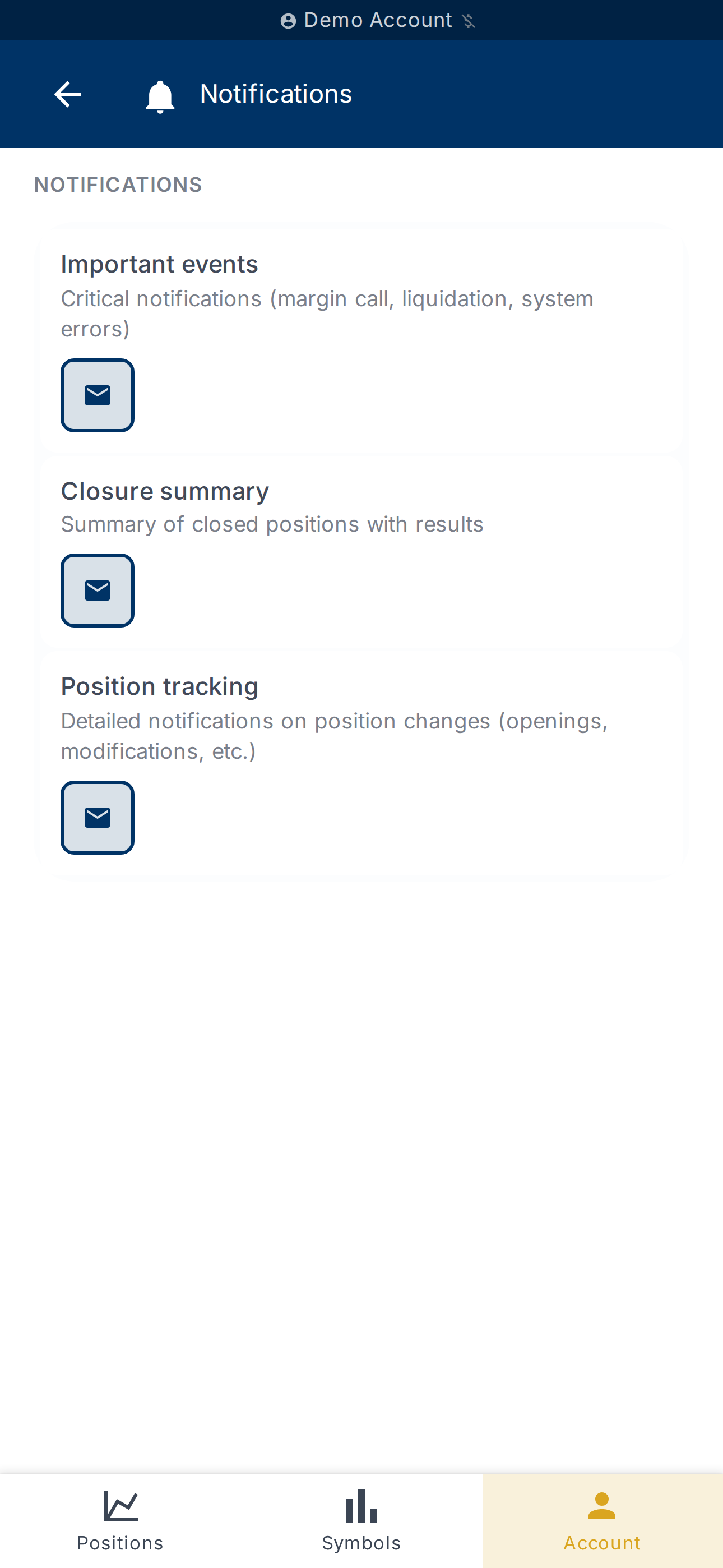
Email notifications
The Notifications
page lets you enable or disable emails sent to your account address:
- Position opened — when a new position is created;
- Position closed — when a position closes;
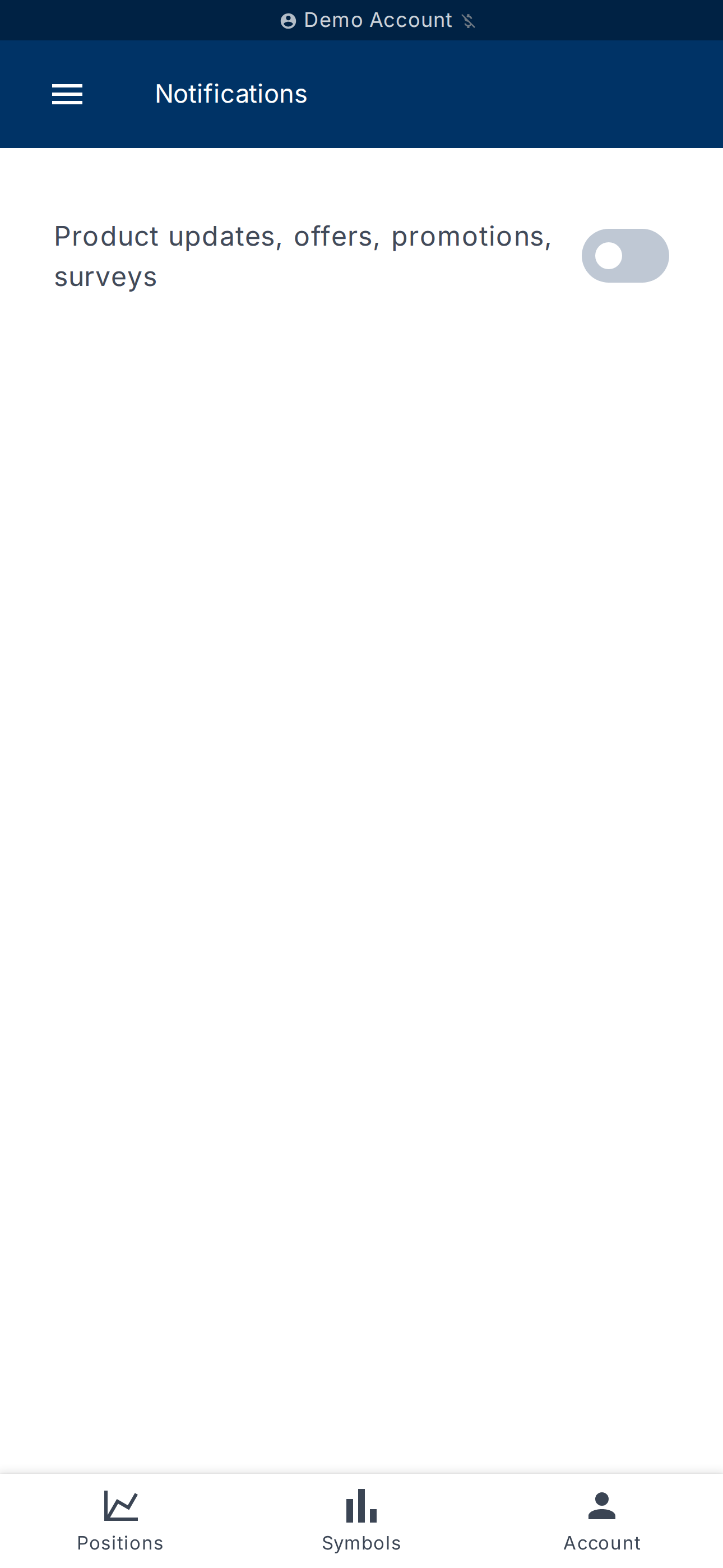
- Product updates, offers, promotions, surveys — communications from
the Magic Position team.
Each email type can be enabled or disabled independently.
Telegram and Discord notification channels
In addition to email, you can receive alerts directly on Telegram or
Discord. The connection uses a temporary verification code, from the
Account Notifications page.
Connect Telegram
- On the Account Notifications page, tap Start association on the
Telegram card. - A verification code is displayed with its expiry time.
- Tap Open Telegram Bot and send the code to the bot.
- Enter the Telegram Chat ID returned by the bot, then tap Verify.
- The channel appears as connected.
Connect Discord (notifications)
The process is identical for Discord: tap Start association on the
Discord card, copy the code, open the bot via Open Discord Bot, enter
your Discord User ID and confirm.
To remove a channel, use the delete option on the channel card.
Discord integration (server access)
The Discord Integration
page lets you link your Discord account to the Magic Position server to
unlock subscriber perks:
- Access to subscriber-only channels
- Custom role badges
- Exclusive trading discussions
Link your Discord account
- Open Discord Integration
and tap Generate a verification code. - Copy the code shown (tap Copy code).
- Join the server via Open Discord server.
- In any channel, type
/verifyand paste the code. - The page switches to the Discord connected state.
To unlink, tap Unlink account and confirm in the dialog. You lose
access to subscriber channels until you link again.
What's next?
- Enable automatic performance reports (weekly, monthly, yearly) —
see History and reports. - Choose the per-account display on the dashboard —
see Manage account.