
Create a risk rule
Define a rule that automatically computes the position size and places the stop-loss.
Create a risk rule
A risk rule automates a trading decision applied to an account:
position size computed from the risk policy, stop-loss, take-profit,
exit conditions. This page explains how to create one.
Prerequisites
- A connected trading account (see Connect a broker).
- A configured risk policy — without it the app cannot compute the
position size. Open Account risk
to choose a Calculation mode (fixed amount or balance percentage)
and the amount or percentage to risk.
Step 1 — Open the Rules page
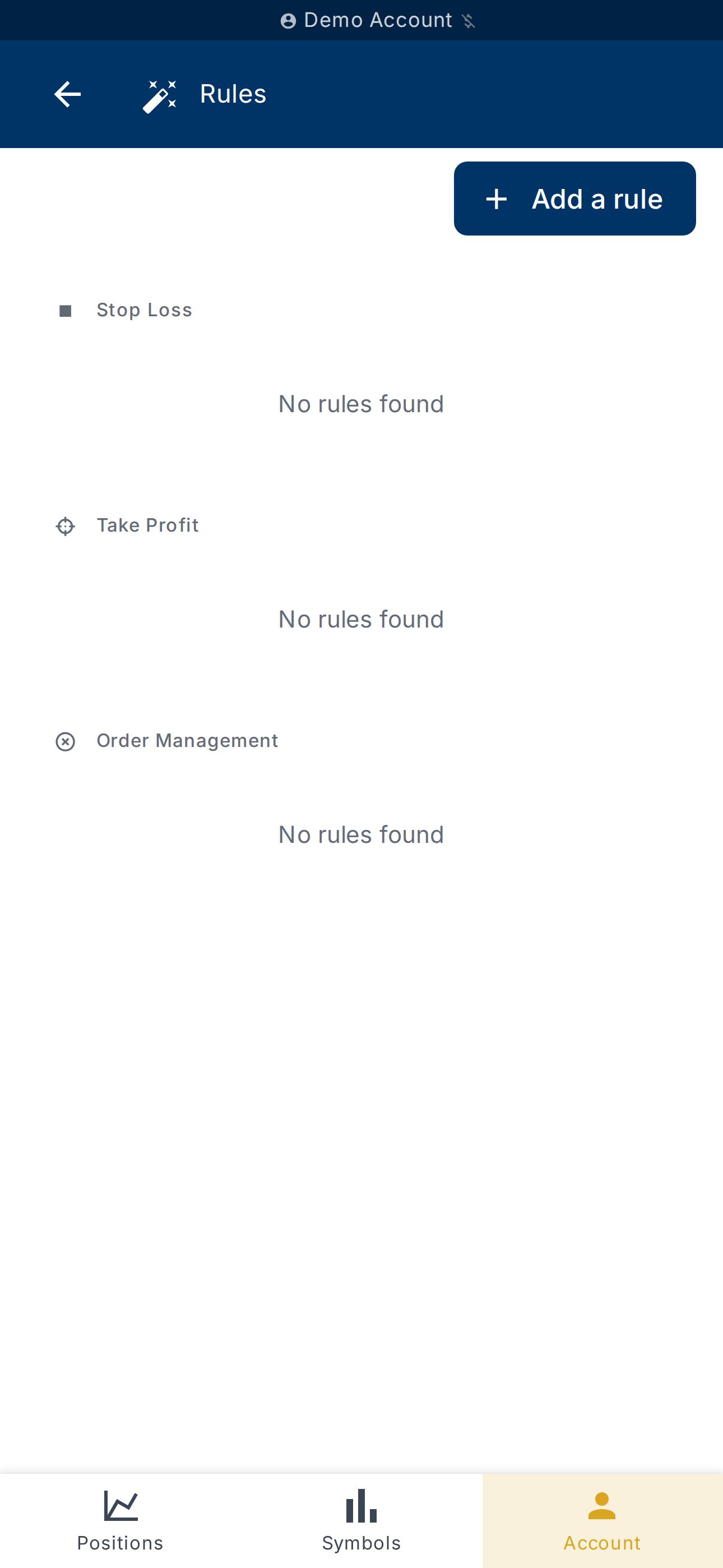
On Rules, click Add a rule.
The page lists existing rules grouped by category (Stop Loss, Take
Profit, Order Management). If the list is empty, the app shows
No rules found.
Step 2 — Pick a template
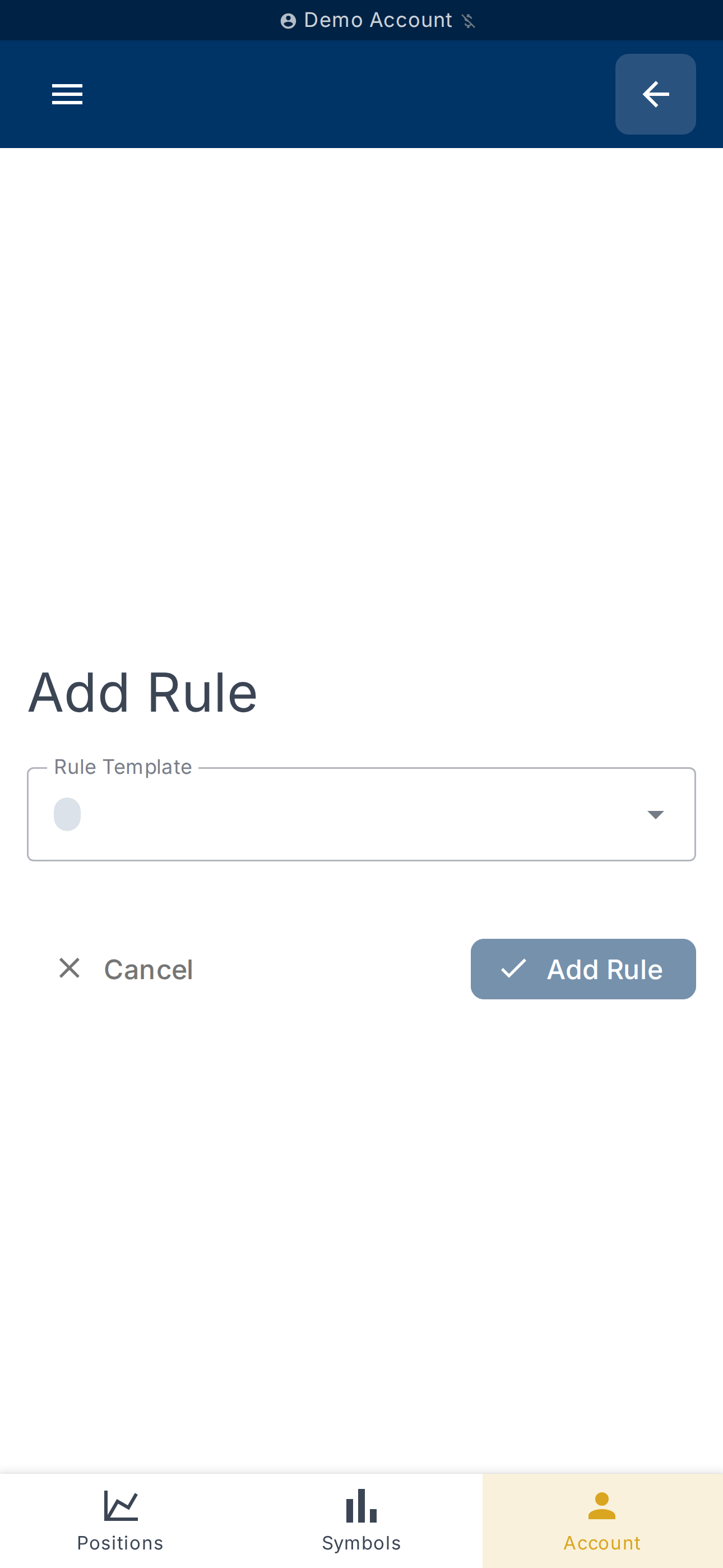
The rule-creation form opens at Add a rule.
Choose a Rule template from the dropdown. The available templates
correspond to ready-to-use strategies, including:
- Stop-Loss to break-even — moves your stop-loss to the entry
price once the position reaches a profit threshold (in R-multiples); - Lock-in profit — moves the stop-loss to guarantee a minimum
profit when a higher threshold is reached; - Take profit — closes the position when profit reaches the target
(in R-multiples); - Free trade — partially closes the position at a profit threshold
to recover the initial risk; - Time-based stop — closes the position if a minimum profit is not
reached within a given delay; - Max drawdown from peak — closes the position if profit drops too
far from its peak; - Pattern-based exit — uses reversal candlestick patterns to time
the exit; - Cancel pending on price level — cancels a pending limit order
when a level invalidates the setup; - Partial close at price — closes a percentage of the position at
a target level.
Step 3 — Fill in the parameters
The form shows two blocks depending on the template:
- Condition parameters — when the rule triggers (profit threshold,
price level, delay, pattern…); - Action parameters — what it does (move the stop, close a
percentage, etc.).
Submit with Create rule. A Lab banner appears for templates that
are still experimental — their behaviour can change.
Step 4 — Verify the created rule
Back on Rules, the new rule
appears under its category. Click it to open the detail, edit it
(Save button) or delete it.
If the rule is already active on open positions, the app warns:
This rule is currently active on N position(s). Changes will only
apply to future instances.
What's next?
- Refine the Exit strategy from
Exit strategy — see
Configure stop-loss and take-profit. - Understand how the position size is computed — see
Position sizing.