
Trading symbols
Search, explore and track the symbols available on your connected trading account.
Trading symbols
The Symbols page lists all tradable instruments on the connected
account: currency pairs, cryptocurrencies, indices, stocks, metals,
commodities, energies. This guide explains how to find them and view
their technical specifications.
Opening the Symbols page
The Symbols page is accessible from
the side menu. The content depends on the trading account currently
selected — each broker exposes its own catalogue.
If no account is selected, the message No account selected —
Please select an account to view symbols is displayed.
Searching for a symbol
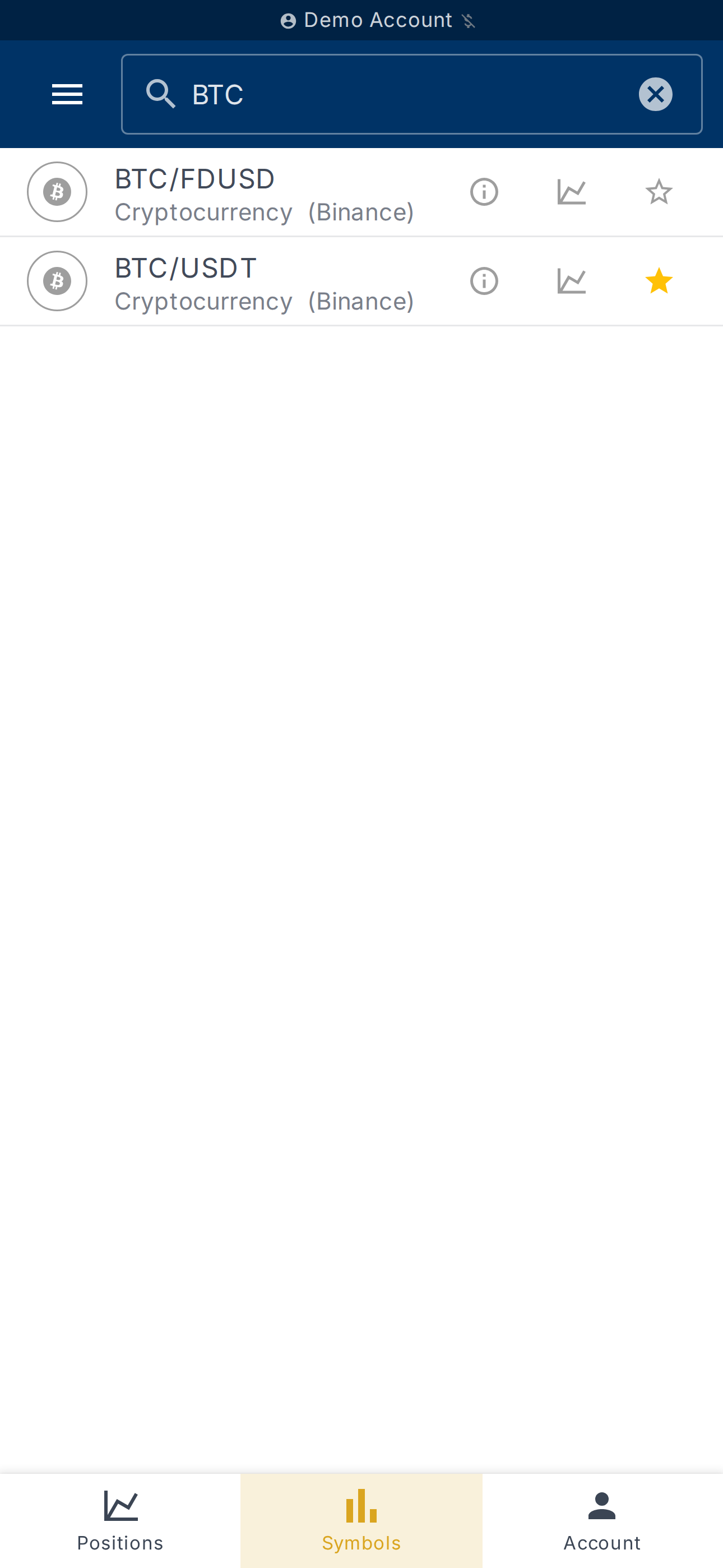
The search bar at the top of the page accepts a name, a code or
a category. The placeholder shows accepted examples:
Name, code or category...
If no result matches, the app displays No symbols found — Try
modifying your search criteria.
Browsing by asset class
Results are grouped by asset class:
- Forex
- Cryptocurrency
- Indices
- Stocks
- Metals
- Commodities
- Energies
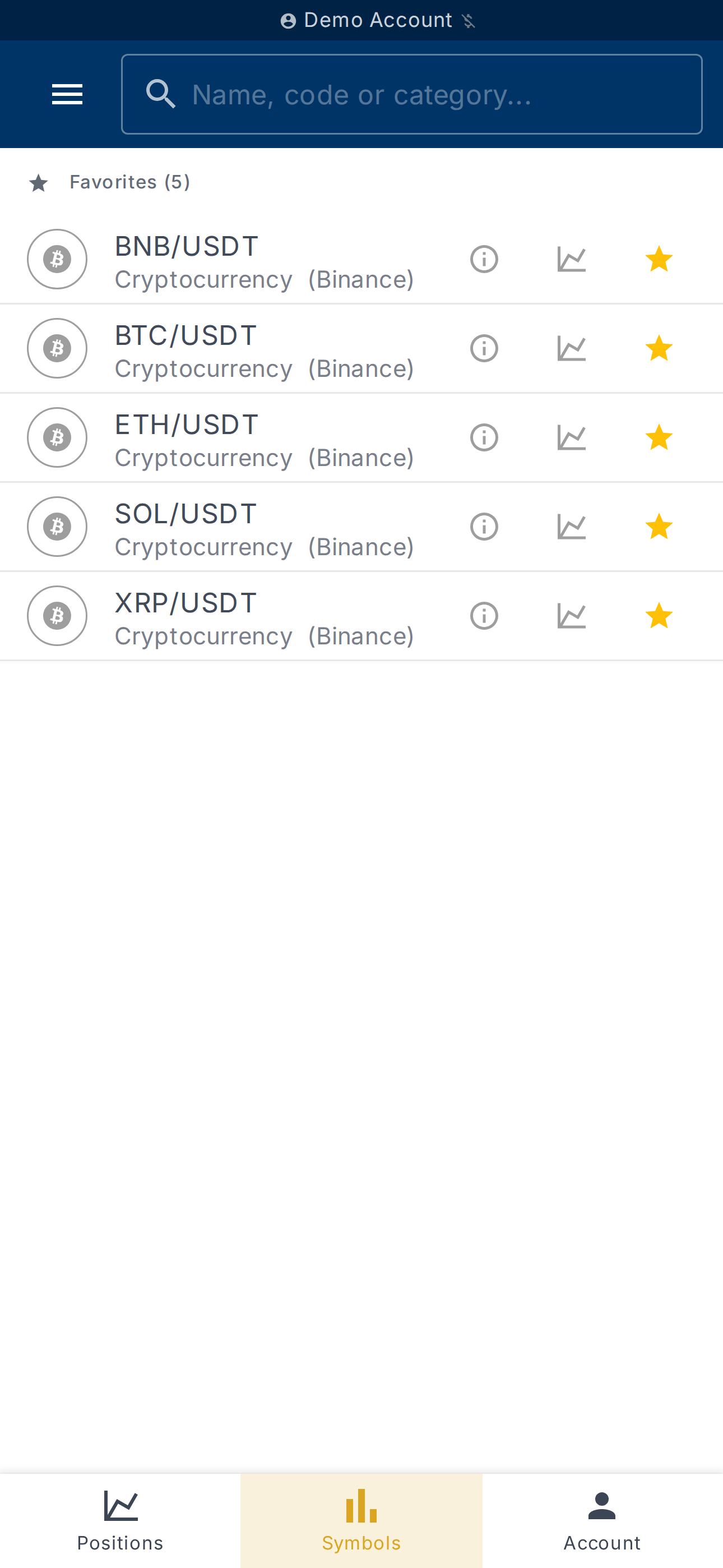
A Favorites section lets you pin the symbols you follow regularly
(see below).
Viewing technical specifications
On each symbol, the Symbol info icon opens a panel showing:
- Description
- Digits (precision)
- Tick size
- Lot size
- Min order size and Max order size
- Leverage
- Margin requirement
These specifications come directly from the broker. If they are not
available, the message Unable to load symbol details is displayed.
Managing favorites
The star icon on each row lets you Add to favorites or
Remove from favorites. Favorite symbols move to the top of the
list, in their dedicated section.
A second icon, Chart, opens a chart of the symbol to visualise its
recent price action.
What's next?
- Open a position on a symbol — see
Getting started. - Calculate your position size before trading — see
Position sizing.