
Manage your account
View account information, configure balance and PnL display, and delete an account.
Manage your account
Once a trading account is connected, Magic Position centralises everything
related to its management on a few dedicated pages: financial information,
display preferences, and deletion. This guide covers where to find each
setting.
The account dashboard
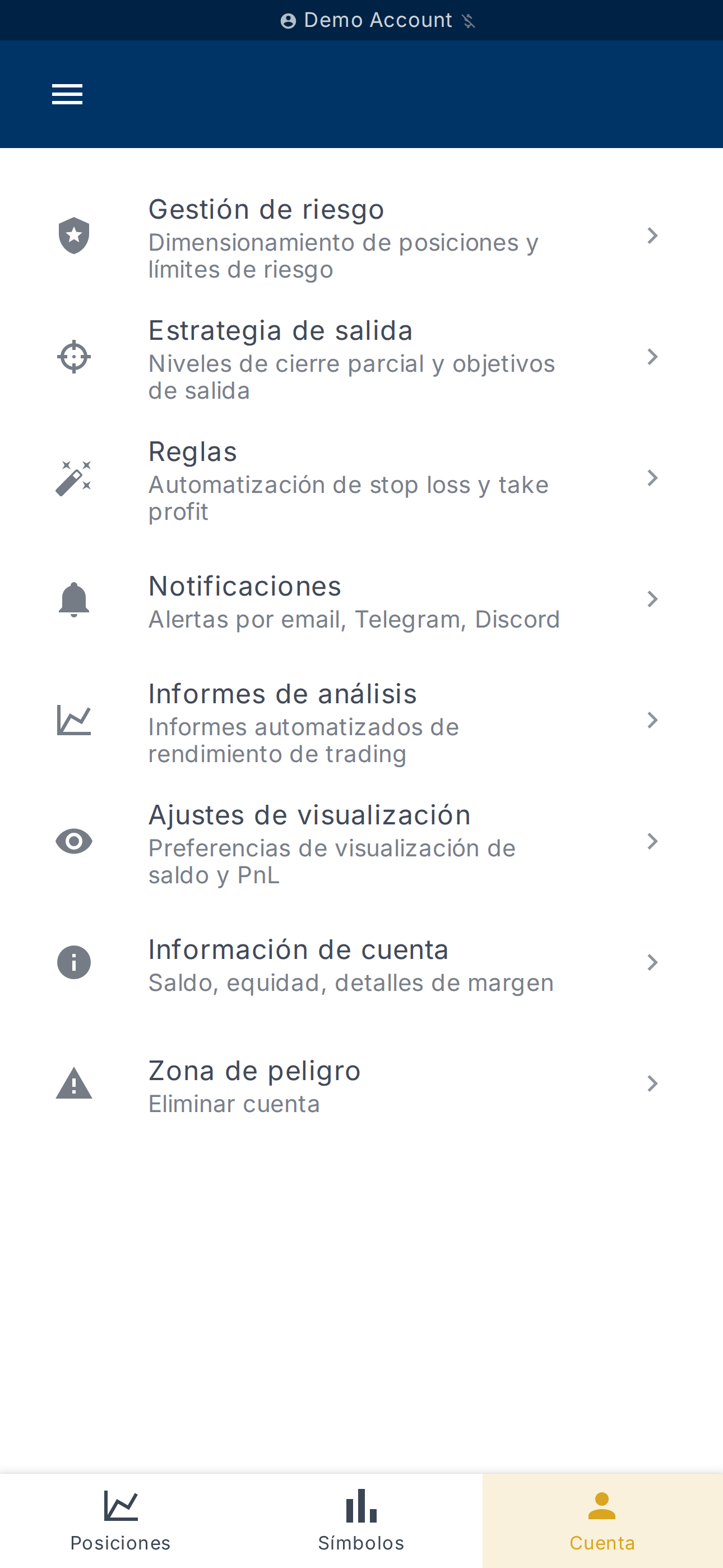
The Account page is the home page for
the selected account. It brings together shortcuts to Account Information,
Risk Management, Rules, Exit Strategy,
Display Settings, Notifications, Analysis Reports
and Danger Zone.
If several accounts are connected, use the selector at the top of the page to
switch between them — all child pages follow the active account automatically.
View detailed information
The Account Information page
displays the values returned by the broker:
- Balance
- Equity
- Unrealized P/L
- Margin Used, Free Margin, Margin Level
- Leverage
The Show amounts / Hide amounts button lets you conceal sensitive
values, which is useful when sharing your screen or taking screenshots.
Choose the display mode
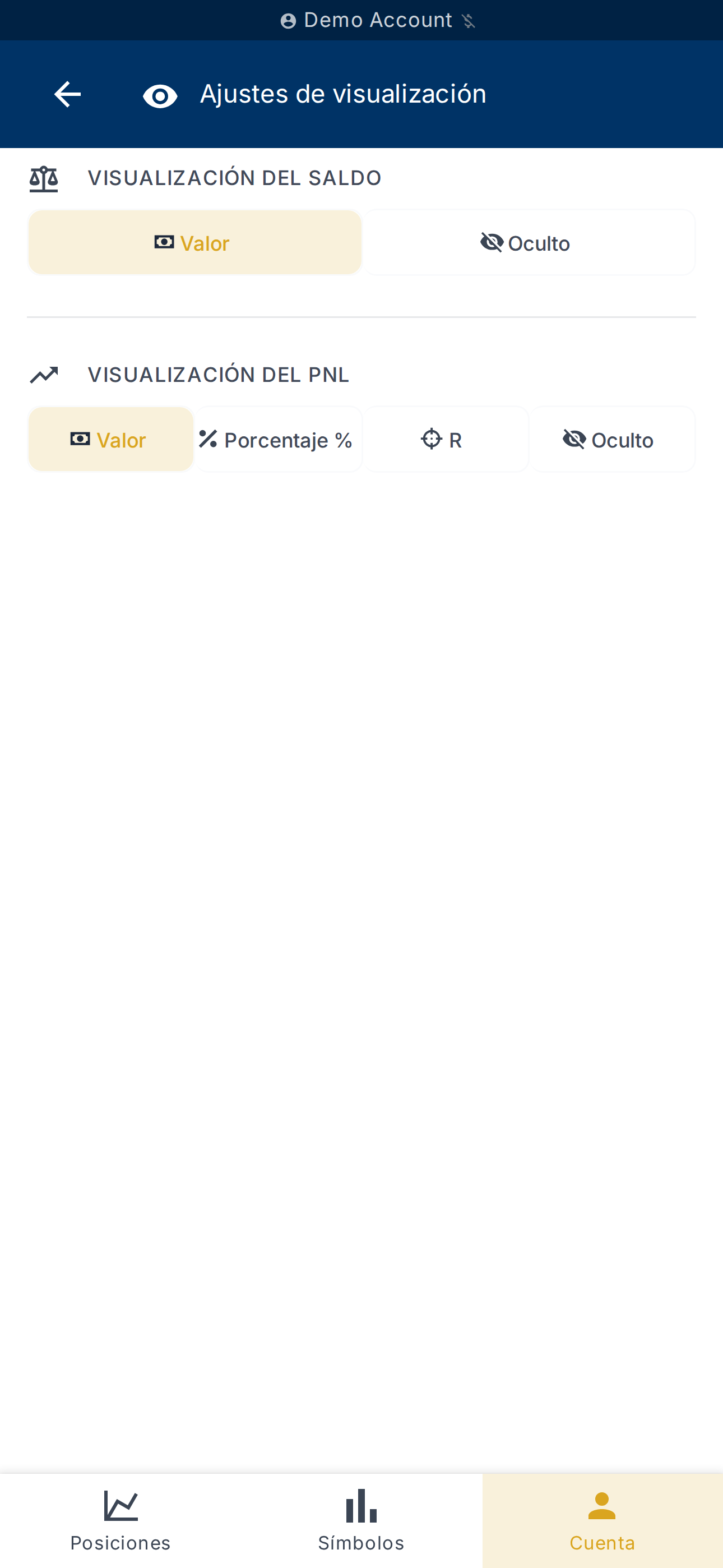
The Display Settings page
controls how the Balance and PnL are presented on the tracking
screens:
- Value — the raw amount as returned by the broker;
- Percentage % — expressed relative to capital;
- Hidden — the value is not shown at all.
The theme Mode (Light, Dark, System) is also configured from this
page.
Delete an account
The Danger Zone page groups
destructive actions. The Delete this account button permanently removes
the account from Magic Position, along with all associated data (preferences,
risk policies, rules).
For a deletion to succeed:
- all open positions must be closed beforehand;
- the action is irreversible — the app asks for confirmation.
For MetaTrader accounts, a 30-day delay applies before a new one can be
created (see Connect a broker).
What's next?
- Configure per-account notifications — see Notifications.
- Enable automated reports — see History and reports.